

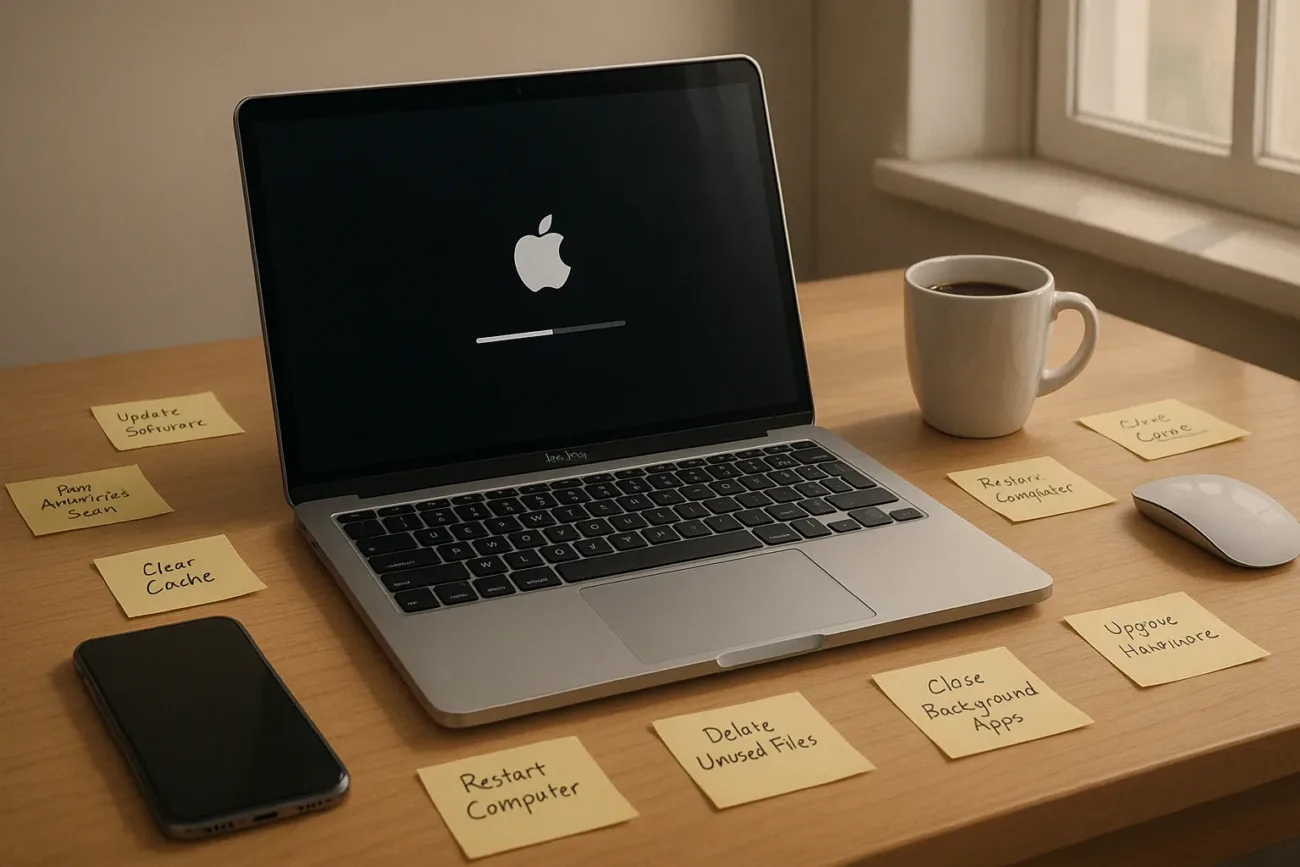
Encountering a sluggish boot time on your Mac can be incredibly frustrating, especially when you’re ready to dive into your digital workspace. While Macs are celebrated for their performance, over time, various factors can lead to a slow startup. Let’s explore practical steps to enhance your Mac’s boot speed, making it zippier and more efficient.
Diagnosing the Causes Behind Slow Startup Times
Understanding why your Mac is booting slowly is crucial for applying the appropriate fixes. Common culprits include excessive startup programmes, insufficient free space, or outdated software. Keep in mind that modern Macs usually boot quickly, so a noticeable slowdown often indicates an underlying issue.
Assessing Startup Items
One of the primary reasons for a slow boot is an excess of startup applications. Each added program that launches at startup consumes valuable resources. You might be surprised at the number of applications that quietly insert themselves into your startup routine without your explicit consent.
To check and modify your startup items:
- Open System Settings, navigate to Users & Groups, and click on your account;
- Switch to the Login Items tab;
- Review the list and remove any non-essential applications by selecting and clicking the minus icon.
Optimising Storage to Boost Performance
A cramped hard drive can bring even the fastest systems to a crawl. macOS needs free space for virtual memory and temporary files. Keeping at least 10-20% of your drive space free is a good rule of thumb. If you’re nearing capacity, some housekeeping might be in order.
Cleaning Up Your Hard Drive
Reduce clutter and reclaim space by deleting old files, uninstalling unused applications, and utilising optimisation tools. Consider storing infrequently accessed files in the cloud or on an external drive.
Utilising Storage Management Tools
macOS offers built-in tools to help manage storage. Navigate to About This Mac, select Storage, and click Manage. Recommendations for optimising storage will be presented, allowing for quick wins in freeing up space.
Updating macOS and Software
Running outdated software can contribute to slow performance, including boot times. Apple frequently releases updates for macOS that not only provide new features but also optimizations and bug fixes. Staying up-to-date ensures that your Mac runs smoothly.
Keeping Software Current
To check for macOS updates, go to System Settings and select Software Update. Regularly updating not only boosts performance but also improves security.
Application Updates Matter Too
Ensure all installed apps are updated by checking the App Store or using built-in update functions in the apps themselves. Applications benefiting from the latest optimisations can significantly speed up their launch.
Hardware Considerations for Speed Enhancement
If software tweaks aren’t sufficient, consider hardware upgrades. Older Macs, in particular, benefit from hardware enhancements which can deliver considerable speed gains.
Considering an SSD Overhaul
One of the most impactful upgrades for an old Mac is switching from an HDD to an SSD. SSDs are considerably faster, reducing boot times and speeding up overall system performance.
RAM Upgrades: Boosting Memory
More RAM allows for better multitasking and can notably improve speed. Check your model’s limitations on RAM upgrades and consider increasing it if you’re frequently multitasking or using intensive applications.
Monitoring and Maintenance to Ensure Longevity
Regular maintenance is key to sustaining performance enhancements. A consistent schedule of updates, cleaning, and monitoring ensures that your Mac maintains optimal performance over time.
Implementing Routine Maintenance
Make a habit of regularly cleaning up your system, monitoring storage, and managing startup items. Such proactive measures can prevent issues before they impact your boot times significantly.
Utilising Monitoring Software
Consider installing monitoring software which offers insights into system health, providing alerts when resources are stretched thin or when potential issues arise.
Diagnosing Persistent Issues
If your Mac’s startup remains stubbornly slow after these adjustments, there may be deeper software issues at play. Here are some more advanced suggestions:
- Perform a clean installation of macOS to eliminate software corruptions;
- Reset the System Management Controller (SMC);
- Consult Apple Support for potential hardware issues.
Tackling slow boot times on your Mac is often a multifaceted process. It requires patience, a systematic approach, and sometimes, a little investment in hardware. By understanding the root causes and implementing these solutions, you can ensure your Mac runs as efficiently as possible, reducing your frustration and enhancing your digital workflow.


