

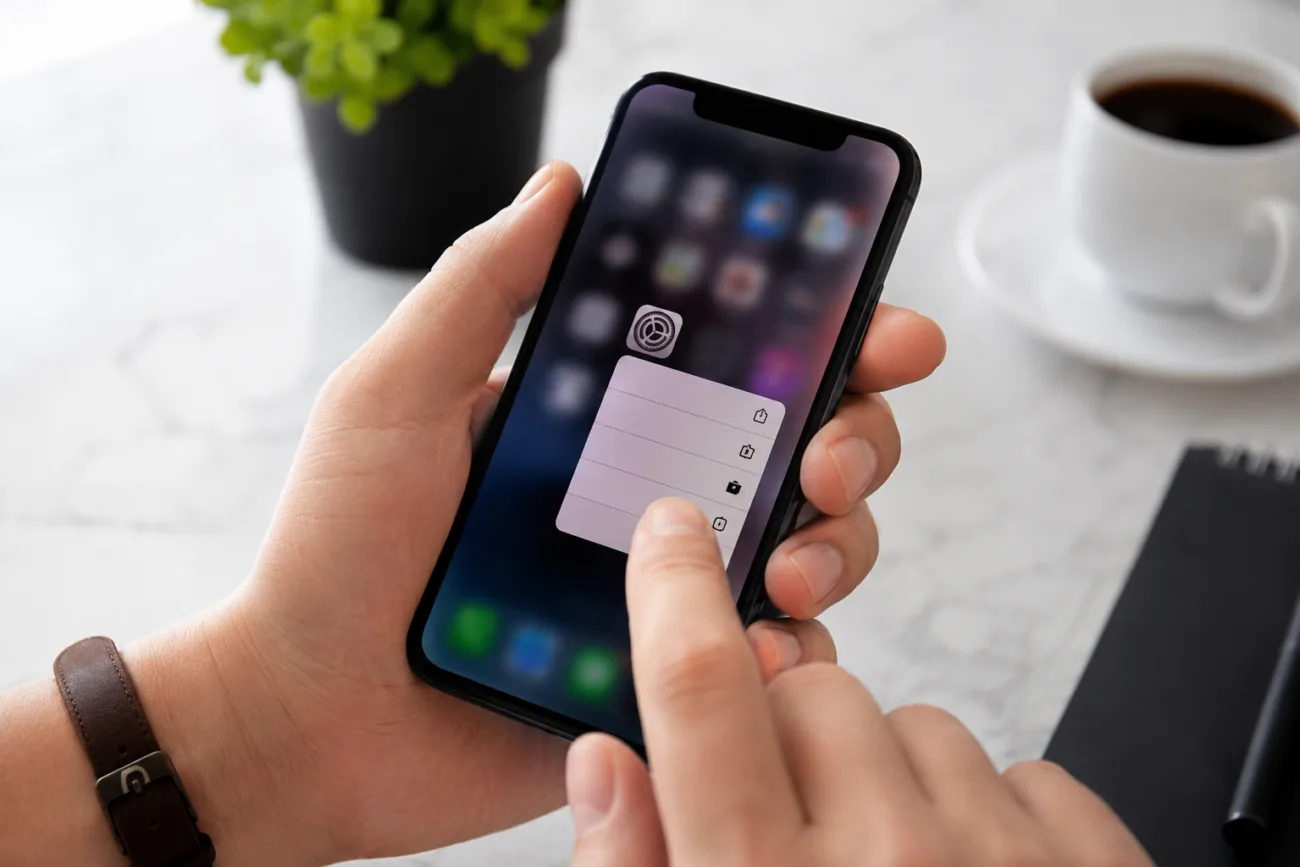
Changing default apps on an iPhone can feel like uncharted territory, but with just a few simple steps, you can tailor your device to better suit your needs. As Apple slowly opens the possibility to switch default applications, you have more control over your everyday iPhone experiences. Let’s delve into this with some easy-to-follow guidance.
Understanding the Concept of Default Apps
Default apps are those that your iPhone automatically assigns for specific tasks, such as sending emails or browsing the internet. This means whenever you click on a link or an email address, your phone will launch a pre-selected application to handle it. Until recently, Apple didn’t allow much flexibility in altering these defaults.
However, changes in iOS have now made it possible to tweak some default apps to better match user preferences. Whether you’ve found a browser with nifty features or an email client that suits your style, swapping default apps can enhance your smartphone experience.
Why Change Default Apps?
Apple’s native apps are reliable, but they might not offer the advanced functionalities that some third-party alternatives provide. Customising your defaults can streamline how you interact with your iPhone, especially if you’re more comfortable or quicker using certain applications.
Moreover, by setting your preferred apps as the defaults, you can ensure a seamless and efficient workflow. This kind of personalisation helps you get the most out of your device with minimal effort.
Setting a New Default Browser
One of the most common default app changes is switching your web browser. Many users prefer browsers with additional privacy features or customisation options not available in Safari. Luckily, swapping your default browser is straightforward:
- Ensure the alternative browser is installed on your device and updated to the latest version;
- Open the iPhone’s ‘Settings’ app;
- Scroll down to the list of installed applications and select the new browser you wish to set as the default;
- Tap on ‘Default Browser App’ and choose your preferred browser from the list.
Once these steps are completed, any link you open will launch in the new browser of your choice.
Altering Your Default Email Client
Similarly, if you fancy an email app other than Mail, Apple offers the ability to make the swap. Maybe you’re drawn to the design of Outlook or the organisational features of Spark. Changing the default email app is similar to changing browsers:
- First, download and install your email app of choice from the App Store;
- Navigate to the ‘Settings’ on your iPhone;
- Locate the app’s settings by scrolling through the list of apps;
- Tap ‘Default Mail App’ and select the email app you’ve downloaded.
Now, each time you tap an email link, your selected email app will open automatically.
Common Hiccups and Troubleshooting
Sometimes, despite following all the steps, settings might revert or not take effect. If this happens, don’t launch into despair! Keep in mind several potential culprits could be at play, such as app updates or system bugs.
First, check if your iOS is up to date. Apple’s continuous updates can occasionally cause default settings to reset. Moreover, always ensure the app you desire to set as default is updated and that you’re using a compatible version that supports default assignment.
| Problem | Solution |
|---|---|
| Default app resetting | Ensure both iOS and app are updated |
| Unsupported App | Verify app compatibility with default settings |
| Unseen changes | Restart device and try resetting defaults |
Future What Ifs?
While Apple presently limits which default apps can be changed, the landscape is evolving. The increasing demand for customisation might lead to even more possibilities with each new iOS update. It won’t be surprising if we see more flexibility around other default apps soon enough.
To wrap it up, the freedom to customise your iPhone according to your tastes is slowly expanding. By understanding how to change default apps, you can enhance efficiency and enjoy a more personalised smartphone journey. Keep exploring new tools and ways to make your tech work better for you — after all, smart devices are meant to make our lives easier!


