

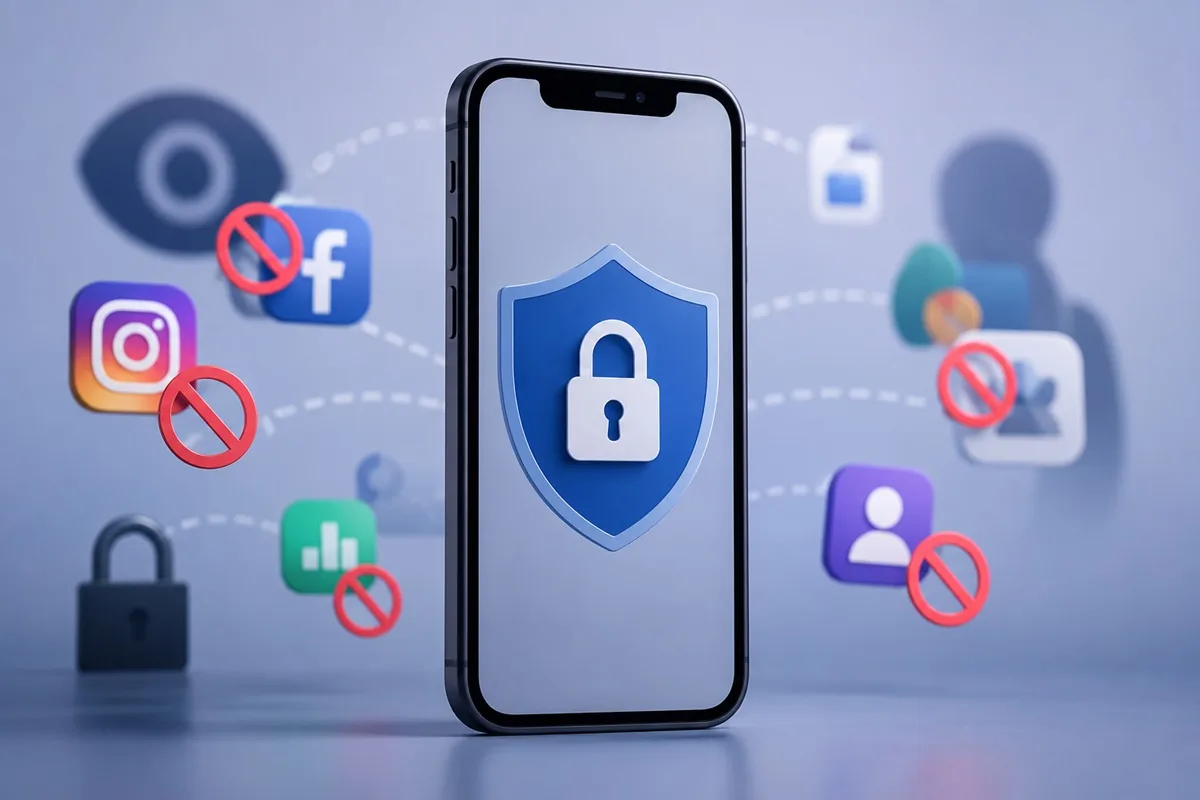
Many iPhone users do not realise how much data mobile applications collect every day. Apps can monitor browsing habits, purchases, location history, and interactions across multiple platforms to build detailed advertising profiles. If you value your privacy, learning how to stop app tracking on iPhone is one of the most effective ways to reduce unnecessary data collection.
Apple has introduced several privacy-focused features that allow users to control how apps access and share personal information. With the right settings enabled, you can limit tracking, reduce targeted advertising, and keep more of your digital activity private.
What App Tracking Means on an iPhone
App tracking refers to the process where applications collect information about your activity across different apps, websites, and services. This information is commonly used by advertisers to display personalised adverts based on your interests, browsing behaviour, and purchasing habits.
For example, you might search for trainers in one app and suddenly see adverts for sports shoes across multiple websites and social media platforms. This happens because tracking technologies connect your activity between services and devices.
Apple’s App Tracking Transparency framework was created to give users more control. Since iOS 14.5, apps must request permission before tracking users across other companies’ apps and websites. This allows iPhone owners to decide whether they want to share their data with advertisers.
How to Disable App Tracking Requests Completely
The easiest way to stop app tracking on iPhone is by disabling tracking requests at the system level. This prevents apps from asking for permission and automatically denies future tracking attempts.
Open the Settings app and navigate to Privacy & Security. Tap Tracking and locate the option labelled “Allow Apps to Request to Track”. Turn this switch off. Once disabled, newly installed apps will no longer be able to request permission to track your activity.
This single setting provides one of the strongest privacy protections available on iOS. It significantly reduces the amount of behavioural data available to advertising networks and third-party marketers.
Many users worry that apps will stop working if tracking is disabled. In reality, most applications continue functioning normally because tracking is primarily used for advertising and analytics rather than core features.
Remove Tracking Permissions from Existing Apps
If you previously allowed certain applications to track your activity, those permissions may still remain active. Turning off future requests does not automatically revoke permissions already granted.
Visit Settings, Privacy & Security, and Tracking. Here you will find a list of apps that currently have tracking access. Review each application carefully and disable tracking for any app that does not genuinely require it.
Social media platforms, shopping applications, gaming apps, and free utility tools are often among the most active users of advertising identifiers. Removing their tracking permissions can improve privacy considerably.
Adjust Location Settings to Reduce Data Collection
Location data is one of the most valuable types of information collected by mobile apps. Even if tracking permissions are disabled, apps with unrestricted location access may still gather detailed information about your movements and habits.
Navigate to Settings and select Privacy & Security followed by Location Services. Review every application individually and determine whether it truly needs access to your location.
For most apps, selecting “While Using the App” provides sufficient functionality without allowing continuous background tracking. Some applications can even be set to “Never” if location access is unnecessary.
Reducing location permissions not only enhances privacy but can also improve battery life by preventing apps from constantly accessing GPS services in the background.
Disable Precise Location Where Possible
Many applications do not need your exact position to function properly. Apple allows users to disable Precise Location while still providing an approximate area.
This option is especially useful for weather apps, local news services, and retail applications. They can still provide relevant information without knowing your exact address or real-time movements.
Strengthen Safari Privacy Settings
Your web browser plays a major role in online tracking. Safari includes several built-in privacy features designed to limit the ability of advertisers and data brokers to monitor your browsing activity.
Open Settings and scroll to Safari. Ensure that “Prevent Cross-Site Tracking” is enabled. This feature blocks trackers that attempt to follow your activity across multiple websites.
You should also enable “Hide IP Address from Trackers” if available. This makes it more difficult for advertisers to identify and profile your browsing behaviour.
Safari’s Privacy Report provides useful insights into how many trackers have been blocked. It can be surprisingly satisfying to see just how many companies were prevented from monitoring your activity during a typical week online.
Combined with App Tracking Transparency, Safari’s privacy tools create a significantly more private browsing experience for iPhone users.
Other Privacy Settings That Help Protect Your Data
Stopping app tracking is only part of a complete privacy strategy. Several additional settings can further reduce the amount of information shared from your iPhone.
Under Privacy & Security, review Analytics & Improvements. Disabling options such as Share iPhone Analytics prevents additional usage information from being sent to Apple for product development purposes.
You should also examine permissions for contacts, microphone, camera, photos, and Bluetooth access. Many applications request permissions that are not essential for their primary functions.
Taking a few minutes every few months to audit app permissions helps ensure that only trusted applications retain access to sensitive information.
Privacy protection works best when multiple settings are combined rather than relying on a single feature alone.
Key Actions to Stop App Tracking on iPhone
To maximise your privacy and minimise unwanted data collection, focus on the following steps:
- Disable “Allow Apps to Request to Track” in iPhone settings;
- Revoke tracking permissions previously granted to apps;
- Limit location access to only when apps are actively used;
- Enable Safari’s Prevent Cross-Site Tracking feature;
- Review app permissions regularly and remove unnecessary access.
Keep Your Personal Information Under Your Control
Knowing how to stop app tracking on iPhone gives you far greater control over your personal data. While it may not eliminate every form of data collection, it dramatically reduces the amount of information shared with advertisers and third-party companies.
By combining tracking restrictions, smarter location settings, browser privacy features, and regular permission reviews, you can create a safer and more private iPhone experience. A few minutes spent adjusting these settings today can help protect your personal information for years to come.